
Lookahead
User Guide
1. Introduction
The Lookahead view helps project teams plan upcoming work, check task readiness and identify constraints before they affect site production.
Use it to plan tasks by week and location, assign owners and trades, manage constraints, and monitor whether tasks are ready to proceed.
2. Understanding the Lookahead Workspace
The Lookahead workspace contains a week selector, task readiness summary, planning board, task cards, and task detail dialogs.
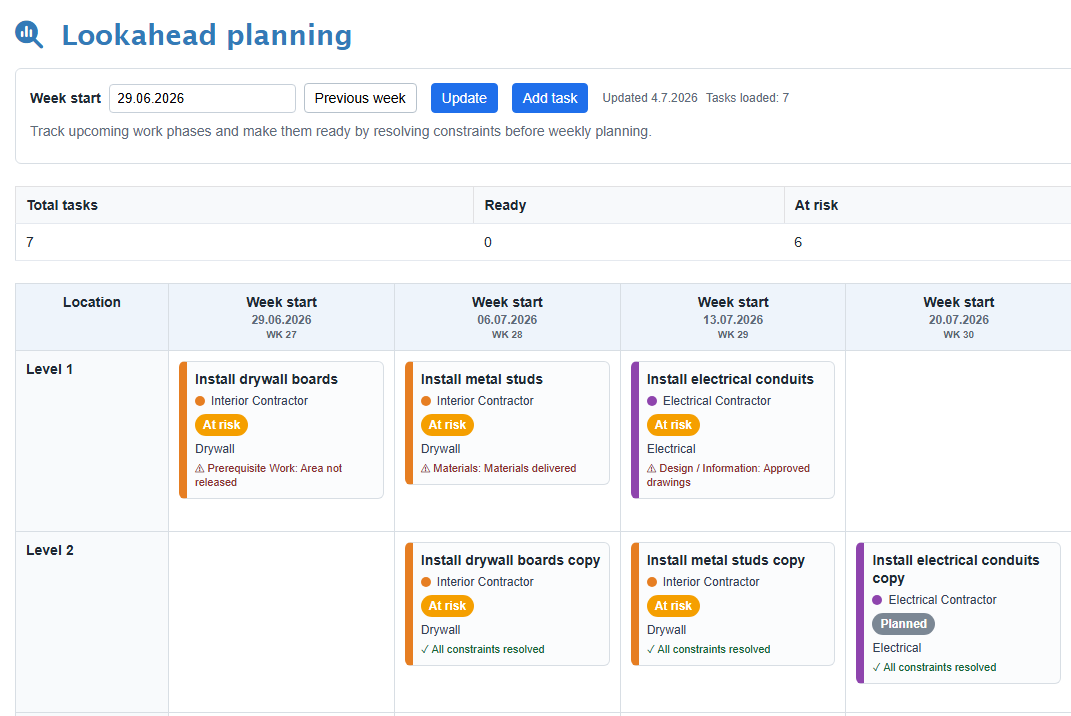
| Area | Description |
|---|---|
| Week selector | Selects the starting week for the six-week lookahead period. |
| KPI summary | Shows total tasks, ready tasks, at-risk tasks, and not-ready tasks. |
| Planning board | Displays tasks by location and week. |
| Task cards | Show task name, owner, trade, status, and constraint information. |
| PDF actions | Export the current view or full table as PDF. |
3. Selecting the Planning Period
The Lookahead view shows a six-week planning window starting from the selected week.
- Enter or select the week start date.
- Use Previous Week to move the planning window backward.
- Click Update to reload the Lookahead board.

4. Managing Lookahead Tasks
Lookahead tasks represent upcoming work items that should be planned and made ready before execution.
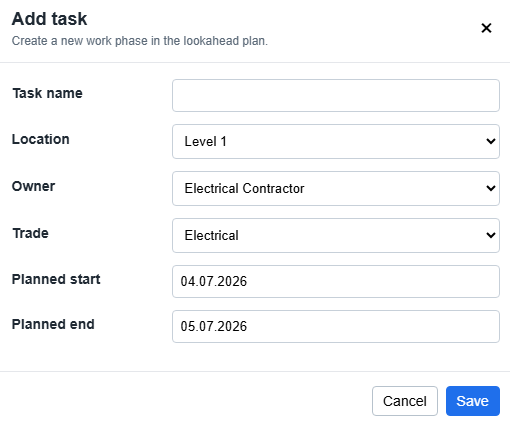
Create a task
- Click Add Task.
- Enter the task name.
- Select the location.
- Select the owner and trade.
- Enter the planned start and end dates.
- Save the task.
Edit a task
- Click a task card on the planning board.
- Update the task name, location, owner, trade, dates, colour, notes, predecessor or attachment URL.
- Click Save Task.
Duplicate or delete a task
- Open the task details.
- Click Duplicate Task to create a copy, or Delete Task to remove the task.
- Confirm the action if prompted.
5. Working with the Planning Board
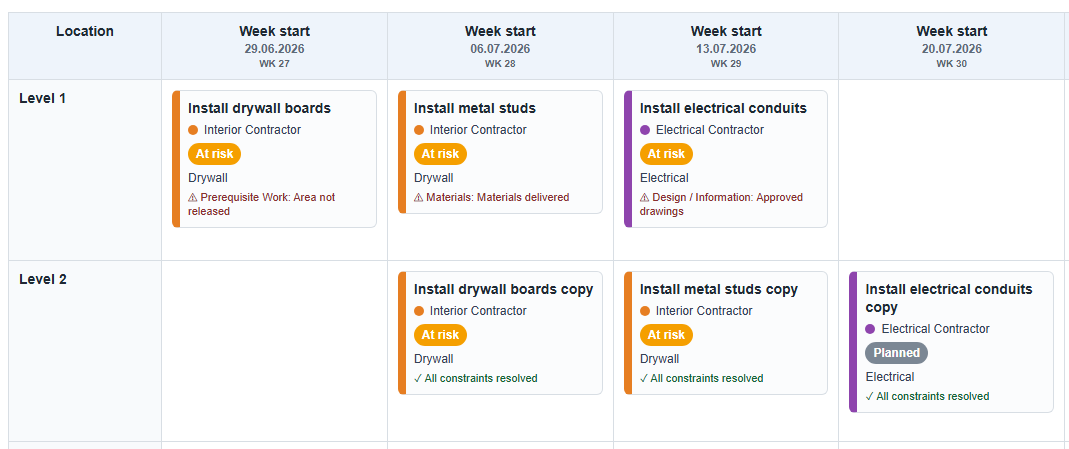
The planning board organises tasks by location and week. This gives the project team a clear view of what work is planned, where it will happen, and when it should be ready.
- Review tasks in each location row.
- Review tasks in each week column.
- Move tasks between locations or weeks when plans change.
6. Managing Constraints
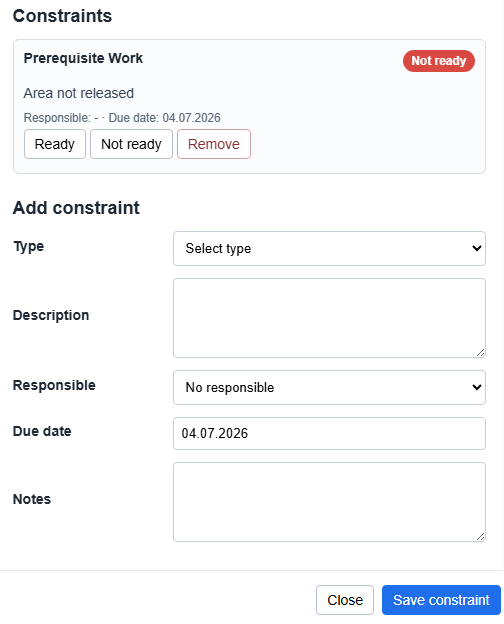
Constraints are issues that must be resolved before a task can be considered ready. Examples include missing information, design decisions, materials, access, permits or resources.
Add a constraint
- Open the task details.
- Select the constraint type.
- Enter the description.
- Select the responsible person.
- Enter the due date and notes.
- Click Save Constraint.
Update constraint status
- Open the task details.
- Find the constraint in the constraint list.
- Mark the constraint as ready or not ready.
7. Monitoring Readiness
Task readiness is calculated from open constraints.
| Status | Meaning |
|---|---|
| Planned | The task is planned but readiness has not yet been confirmed. |
| Ready | The task has no open constraints. |
| At Risk | The task has one open constraint. |
| Not Ready | The task has more than one open constraint. |
The KPI summary at the top of the page helps the team quickly understand whether upcoming work is ready for execution.
8. Exporting and Reporting
Export the Lookahead plan for weekly meetings, reporting and offline review.
| Export option | Description |
|---|---|
| Save as PDF current view | Exports the currently visible planning board. |
| Save PDF full table | Exports the complete Lookahead table. |
9. FAQ
Why is a task marked At Risk?
The task has one open constraint.
Why is a task marked Not Ready?
The task has more than one open constraint.
Why can I not add or edit tasks?
Your Lookahead access may be read-only. Contact the project administrator.
10. Troubleshooting
| Problem | Possible cause | Solution |
|---|---|---|
| The Lookahead board is empty. | No tasks exist in the selected six-week period. | Select another week start date or add new tasks. |
| A task cannot be edited. | The user has read-only access. | Ask the project administrator to check access rights. |
| A task readiness status looks incorrect. | Constraint statuses may not be up to date. | Review the task constraints and update their statuses. |
| Dates change to the start of a week. | Tasks are organised by week start date. | Review the planned week and task dates after moving a task. |