
Last Planner Weekly
User Guide
1. Introduction
Last Planner Weekly helps project teams plan, commit and follow up weekly work. The module supports short-term production control by showing tasks by location and week.
Use Last Planner Weekly to create task owners, define work locations, create tasks, assign work to the weekly plan, update task status, manage dependencies and record delay causes.
2. Last Planner Weekly Workspace
The workspace contains the week selector, task assignment controls, the weekly planning board and task cards. Each row represents a location and each column represents a planning week.
.png)
| Area | Description |
|---|---|
| Week start | Selects the first week displayed on the weekly board. |
| Load week | Loads the selected weekly planning period. |
| Add owner | Creates a person, team or contractor responsible for tasks. |
| Add task | Creates a reusable task that can be assigned to the weekly plan. |
| Add location | Creates a location row for the planning board. |
| Task assignment controls | Select a task, location and week before assigning the task to the plan. |
| Weekly board | Displays assigned tasks by location and week. |
| Task cards | Show task name, owner, status and quick actions. |
3. Managing Owners
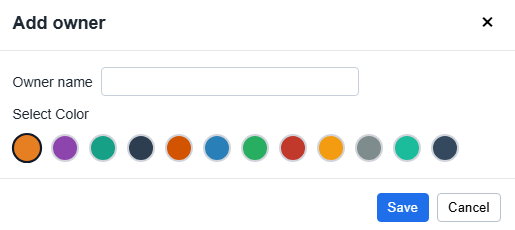
Owners represent the people, teams or contractors responsible for weekly tasks. Each owner has a colour, which is shown on task cards.
Add an Owner
- Click Add owner.
- Enter the owner name.
- Select a colour.
- Click Save.
Edit or remove owners
Owners can be edited or deactivated from the owner management list. If an owner is no longer used, remove or deactivate it to keep the task list clear.
4. Managing Locations
Locations define where weekly work is performed. Typical locations include floors, apartments, rooms, zones or work areas.
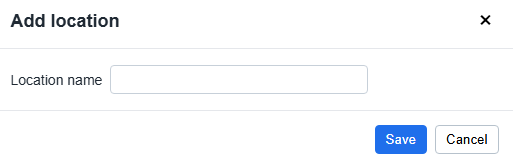
Add a Location
- Click Add location.
- Enter the location name.
- Click Save.
Edit or remove locations
Locations can be edited or deactivated when they are no longer needed. Removing unused locations keeps the weekly board easier to understand.
5. Creating Tasks
Tasks define the work activities that can later be assigned to the weekly plan. Each task belongs to an owner.
Add a Task
- Click Add task.
- Enter the task name.
- Select the owner responsible for the task.
- Click Save.
.png)
| Field | Description |
|---|---|
| Task name | Name of the weekly work activity. |
| Owner | Person, team or contractor responsible for the task. |
6. Assigning Tasks to the Weekly Plan
After a task has been created, it must be assigned to the weekly plan. Assignment places the task into a specific location and week.
- Select the task from the Task list.
- Select the Location.
- Select the Week start.
- Click Assign task.
The task appears as a task card on the weekly board.
7. Working with Weekly Task Cards
Each assigned task is displayed as a task card on the weekly planning board. The card shows the task name, owner, current status and available actions.
.png)
| Element | Description |
|---|---|
| Task name | Name of the planned work activity. |
| Owner | Person, team or contractor responsible for the task. |
| Status | Displays the current task status. |
| Commit | Confirms that the owner commits to completing the task during the planned week. |
| Done | Marks the task as completed. |
| Disabled | Marks the task as blocked or unable to continue. |
| Copy +1 Day | Creates a copy of the task in the next planning period. |
| Remove | Deletes the task from the weekly plan. |
8. Task Status
Task status is used to track commitment and completion during weekly planning.
| Status | Meaning | When to use |
|---|---|---|
| Planned | The task has been assigned but work has not yet been committed. | Use when the task is still part of the draft plan. |
| Commit | The owner has committed to completing the task during the planned period. | Use during the weekly planning meeting when the work is agreed. |
| Done | The work has been completed successfully. | Use when the task is finished. |
| Disabled | The task cannot proceed because of a blocking issue. | Use when the work cannot continue and a delay cause must be recorded. |
9. Managing Dependencies
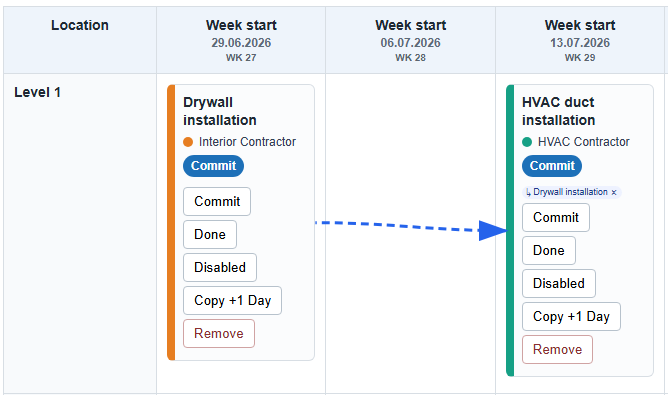
Dependencies define the order in which weekly tasks should be completed. They help show which tasks must be completed before another task can proceed.
Create a dependency
- Select the successor task.
- Select the predecessor task that must be completed first.
- Save the dependency.
The selected predecessor is shown on the task card and a dependency arrow is displayed between the two tasks.
10. Blocked Tasks and Delay Causes
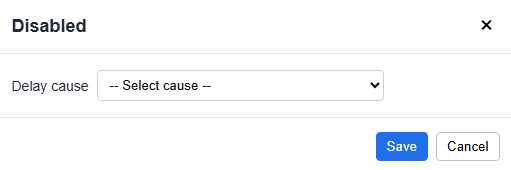
If a task cannot be completed as planned, mark it as Disabled and record the delay cause. This helps the team understand why the work was blocked.
Mark a task as blocked
- Click Disabled on the task card.
- Select the appropriate delay cause.
- Click Save.
| Why record delay causes? |
|---|
| Identify recurring production problems. |
| Improve weekly planning reliability. |
| Analyse why planned work was not completed. |
| Support continuous improvement in the Last Planner workflow. |
11. Moving, Copying and Removing Tasks
Move a task
Move a task by dragging the task card to another week or location on the planning board. The task assignment is updated automatically.
Copy a task
- Click Copy +1 Day on the task card.
- A copy of the task is created in the next planning period.
- Update the copied task if needed.
Remove a task
- Click Remove on the task card.
- Confirm the deletion if prompted.
12. Exporting and Reporting
The weekly plan can be exported for meetings, reporting and offline review.
| Export option | Description |
|---|---|
| Current view PDF | Exports the visible part of the weekly board. |
| Full data PDF | Exports the complete weekly planning data. |
13. FAQ
Why can I not add or edit tasks?
Your access may be read-only. Contact the project administrator.
Why does a task not appear on the board?
The task may not be assigned to the selected week or location. Check the task assignment controls.
Why can I not assign a task?
The same task may already exist in the selected location and week.
Why does a task show as Disabled?
The task has been marked as blocked. Check the selected delay cause.
Why do dependency arrows appear?
Dependency arrows show relationships between tasks. They indicate that one task depends on another.
14. Troubleshooting
| Problem | Possible cause | Solution |
|---|---|---|
| The board is empty. | No tasks are assigned to the selected planning period. | Select another week or assign tasks to the plan. |
| A task cannot be assigned. | Required selections are missing or the assignment already exists. | Check task, location and week. Avoid duplicate assignments. |
| A task cannot be moved. | The target location and week may already contain the same task. | Move the task to another location or week, or remove the duplicate first. |
| A blocked task cannot be saved. | No delay cause has been selected. | Select a delay cause before saving. |
| Dependency cannot be created. | The dependency already exists or the same task was selected twice. | Select a valid predecessor and successor. |
| User cannot edit the plan. | User has read-only access. | Ask the project administrator to check access rights. |