
Tasks
User Guide
1. Introduction
The Tasks module provides a simple task board for managing project work. Tasks are organised by status and can be moved between columns as work progresses.
Use it to create tasks, assign responsible persons, set priorities and deadlines, track progress and export the board to PDF.
2. Tasks Workspace
The workspace contains the task board, task columns, task cards, a New Task button and PDF export.
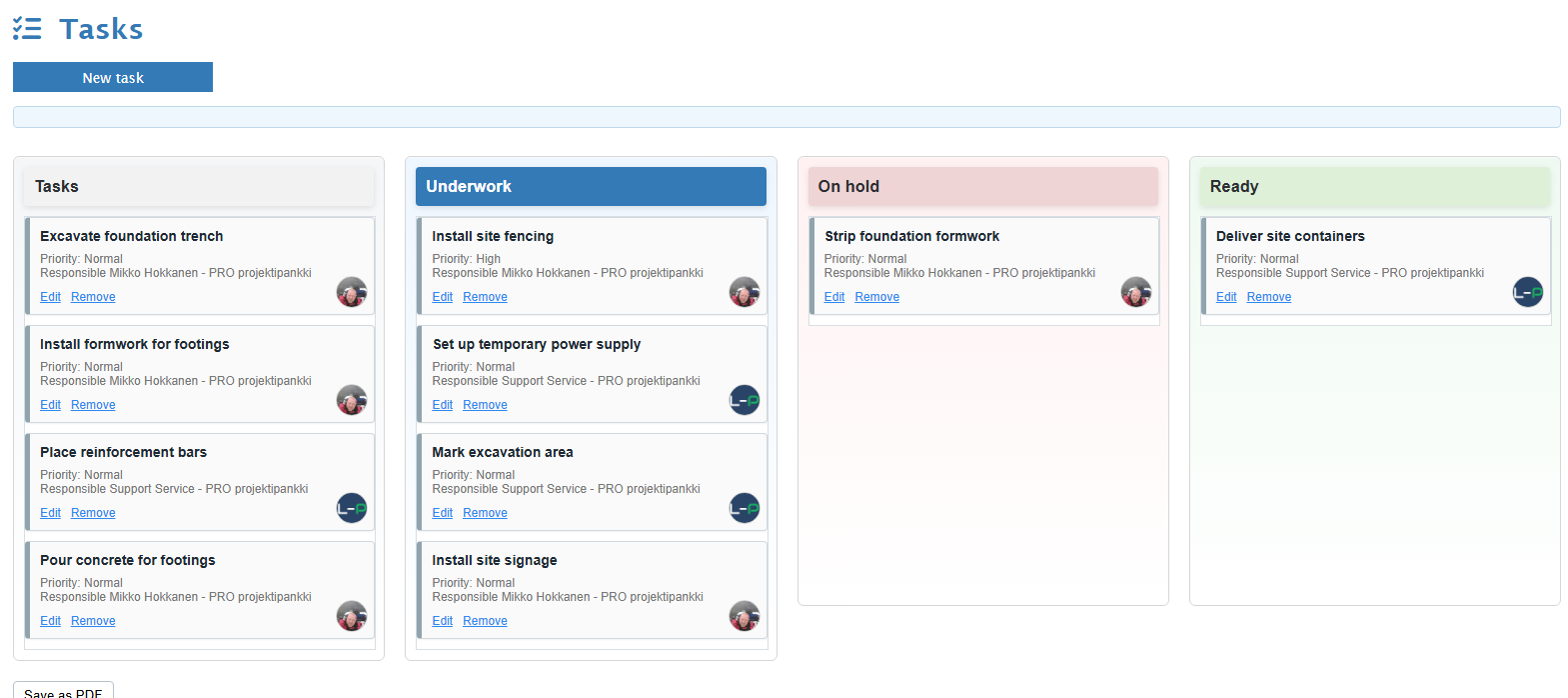
| Area | Description |
|---|---|
| New Task | Opens the form for creating a new task. |
| Task board | Displays tasks grouped by status. |
| Task cards | Show title, description, priority, responsible person, deadline and actions. |
| Save as PDF | Exports the current task board to PDF. |
3. Task Board
The task board has four columns. Each column represents the current status of the task.
Tasks
Tasks that have not started.
Under work
Tasks currently being worked on.
On Hold
Tasks paused or waiting for something.
Ready
Finished tasks.
4. Creating a Task
Create a new task when a new work item, issue or action needs to be tracked.
- Click New Task.
- Enter the task title.
- Enter additional information if needed.
- Select status.
- Select priority.
- Set a deadline if required.
- Select the responsible person.
- Click Save.
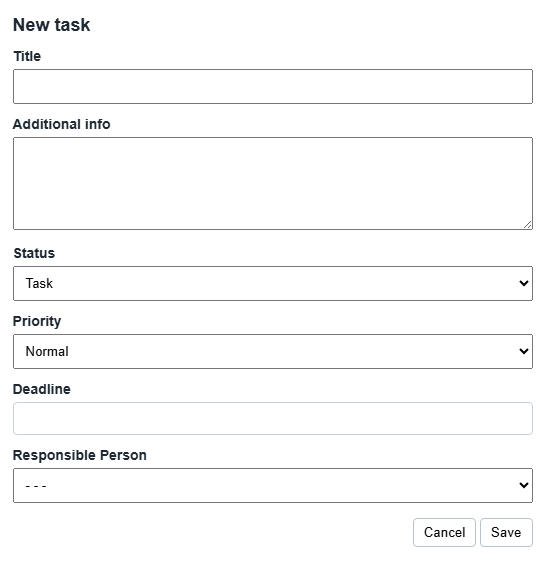
| Field | Description |
|---|---|
| Title | Short name of the task. Required. |
| Additional information | Optional description or instructions. |
| Status | Task, Under work, Ready or On Hold. |
| Priority | High, Normal or Low. |
| Deadline | Optional due date. |
| Responsible person | Project member responsible for the task. |
5. Editing a Task
Use Edit when task information changes or when the responsible person, priority, status or deadline needs to be updated.
- Click Edit on the task card.
- Update the required information.
- Click Update.
6. Task Status
Status shows where the task is in the workflow. A task can be moved by editing its status or by dragging it to another column.
| Status | Meaning | When to use |
|---|---|---|
| Task | Planned but not yet started. | Use for new or open work. |
| Under work | Currently being worked on. | Use when work has started. |
| On Hold | Paused or waiting. | Use when work cannot continue. |
| Ready | Completed. | Use when work is finished. |
7. Priority
Priority helps the team identify which tasks need attention first.
| Priority | Description |
|---|---|
| High | Important or urgent tasks. |
| Normal | Standard tasks. |
| Low | Tasks that can be handled later. |
8. Deadlines
A deadline can be added to show when a task should be completed. If the deadline has passed and the task is not Ready, the deadline is highlighted as overdue.
- Open the New Task or Edit Task form.
- Select the deadline date.
- Save the task.
9. Responsible Person
A task can be assigned to a project member. The responsible person is shown on the task card, together with the user photo when available.
10. Moving Tasks
Tasks can be moved between columns by drag and drop. Moving a task updates its status and saves its order in the target column.
- Click and hold the task card.
- Drag the card to the target column.
- Drop the card in the desired position.
11. Removing Tasks
Remove a task when it is no longer needed.
- Click Remove on the task card.
- Confirm the removal.
12. PDF Export
The Tasks board can be exported to PDF for meetings, reporting and offline review.
- Review the current board.
- Click Save as PDF.
- Save the generated PDF file.
13. Read-only Access
Some users may have read-only access. In read-only mode, the board can be viewed but tasks cannot be added, edited, moved or removed.
| Access level | Available actions |
|---|---|
| No access | The task board is not available. |
| Read-only | View tasks and export information where allowed. |
| Edit access | Create, edit, move and remove tasks. |
14. FAQ
Why can I not create a task?
Your access may be read-only or you may not have access to the Tasks module. Contact the project administrator.
Why is the New Task button missing?
The button is hidden when the user has read-only access or no task access.
Why is a deadline highlighted?
The deadline has passed and the task is not marked as Ready.
15. Troubleshooting
| Problem | Possible cause | Solution |
|---|---|---|
| Task cannot be saved. | The title is missing. | Enter a task title and save again. |
| Task cannot be edited. | User has read-only access. | Ask the project administrator to check access rights. |
| Deadline does not display correctly. | Date format or locale issue. | Select the date using the calendar picker. |
| PDF export fails. | PDF libraries are not loaded or the board is empty. | Reload the page and try again. |